Someone sends an email to jon@company.com instead of john@company.com. Does the message have to bounce, or can Office 365 send it somewhere useful?
An Office 365 catch-all email gives you another option.
Mail sent to an unknown address can still reach a mailbox you choose. Microsoft 365 doesn't have a simple catch-all setting you can switch on, so getting there takes a little configuration in Exchange Online.
If you're trying to set one up, this guide walks you through the process from start to finish. You'll see how the routing works, how to configure and test it, and what to know before you rely on it.
An Office 365 catch-all directs email sent to unknown recipients on your domain to a designated mailbox. It applies when someone sends a message to an address that Microsoft 365 does not recognize as an existing recipient.
For example:
The important part is where the catch-all behavior comes from. The destination catch-all mailbox is not a special mailbox type in Microsoft 365. It is simply the mailbox chosen to receive those incoming messages.
The routing configuration determines which messages reach it. Existing recipients continue receiving their mail normally, while messages covered by the catch-all configuration are directed to the chosen destination.
Office 365 does not offer a standard setting that simply turns a mailbox into a catch-all. Catch-all behavior has to be configured through Exchange Online mail flow.
A normal Exchange Online mailbox receives messages addressed to a recognized recipient. Catch-all behavior works differently. It comes from mail-routing configuration that determines how messages are handled when they meet the conditions set by your organization.
The naming can be confusing. Office 365 still appears in searches and older documentation, while Microsoft 365 is the current Microsoft product branding. Exchange Online is the email service where admins manage the relevant routing settings.
Exchange Online supports mail flow rules, also called transport rules. These rules examine messages in transit and can take actions such as redirecting a message to another recipient.
Microsoft documentation specifically refers to organizations that have created a “catch-all transport rule.”
So, Office 365 can support catch-all behavior, but it is a mail-routing configuration in Exchange Online, not a dedicated catch-all mailbox setting.
An Office 365 catch-all setup controls how incoming mail is handled when someone sends a message to your domain.
The routing flow looks like this:
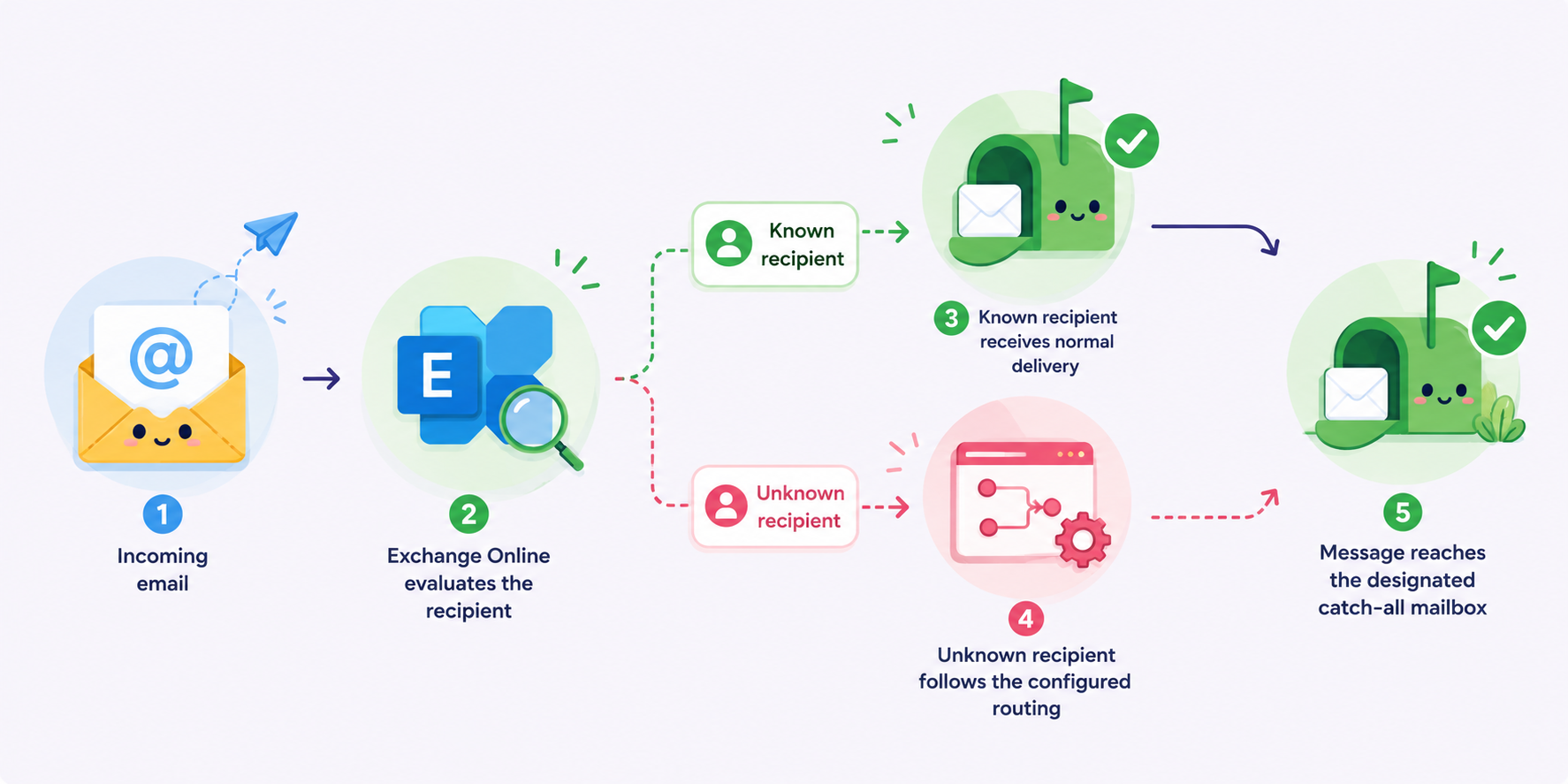
The catch-all mailbox is simply the final destination where those messages are delivered. The key part is the routing configuration that tells Exchange Online what to do when the sender addresses an email to unknown recipients.
Microsoft 365 normally rejects messages sent to unknown recipients when the domain is configured as Authoritative. A catch-all configuration therefore needs to account for both accepted domains and the mail flow behavior.
Some mail-routing designs use Internal Relay when messages for recipients unknown to Microsoft 365 need to continue to another configured mail system.
Internal Relay does not create catch-all behavior on its own, so the rest of the routing configuration still determines where those messages go.
Setting up a catch-all in Office 365 requires more than creating a mailbox. You need a destination for the caught mail, the right accepted-domain configuration, and a mail flow rule that routes the intended emails without interfering with valid recipients.
Microsoft does not provide a single built-in “catch-all” switch, so review each setting carefully before changing production mail flow.
First, decide where caught emails should be delivered. For example:
catchall@company.com
A shared mailbox can work well when several selected users need access to incoming catch-all messages. Microsoft lets administrators create a shared mailbox and assign permissions to the people who need to open or manage it.
You can create a shared mailbox from the Microsoft 365 or Exchange administration tools, but a shared mailbox is not required for catch-all routing. The catch-all mailbox is simply the destination. The routing behavior comes from your Exchange configuration.
Next, check how the specific domain is configured under Mail flow → Accepted domains.
Microsoft distinguishes between two relevant domain types:
Depending on the mail-routing design, an Internal Relay domain may be used when messages for recipients unknown to Microsoft 365 need to continue to another configured mail system.
Note that changing the domain to Internal Relay does not create a catch-all on its own. Internal Relay is designed for environments where mail for unresolved recipients can be routed onward, which requires the appropriate mail-flow configuration.
Review your existing routing and connectors before you configure this change. Microsoft warns that changing an accepted-domain type can cause unexpected mail-flow problems, particularly in hybrid or more complex environments.
Go to the Exchange admin center, then navigate to:
Mail flow → Rules
Exchange Online uses mail flow rules, also called transport rules, to identify emails and perform actions on them while they are in transit.
You can also manage mail flow rules through Exchange Online PowerShell, but the admin center provides the more practical route for this setup.
Microsoft currently supports creating rules from the Exchange admin center or PowerShell.
From the rules list, select Add a rule → Create a new rule.
Give the new rule a descriptive name, such as:
Catch-All Routing
The purpose of the rule is to identify mail that should follow your catch-all route and send it to the destination selected in Step #1.
Review the rule settings carefully before continuing through the setup. A broad rule can process mail you never intended to catch, so its conditions and exceptions are just as important as its destination.
Now define which emails the catch-all rule should process.
The configuration needs to distinguish unknown addresses from the recipient types already recognized by your organization, including existing mailboxes, applicable email aliases, and other mail-enabled recipients.
That distinction is important. A catch-all should not intercept mail that Exchange Online can already deliver normally.
Configure the conditions around the mail-flow design you are using, then add an exception for recognized recipients where required. Review the scope carefully before enabling the rule.
There is no universal set of conditions suitable for every Microsoft 365 environment. Hybrid routing, connectors, groups, public folders, and other mail-enabled objects can affect how messages are processed.
Microsoft describes transport rules as combinations of conditions, exceptions, actions, and properties, so the final configuration should reflect your organization's actual recipient setup.
Set the action so qualifying mail is redirected to the mailbox you chose earlier.
Exchange Online supports a Redirect the message to action in mail flow rules. With a redirect, Exchange sends the qualifying email to the specified destination rather than delivering it to its original target.
For this setup, select the catch-all destination you created earlier.
Be especially careful with external emails. Test mail from an outside sender to confirm that unknown recipients are caught while normal addresses continue receiving each message as expected.
Exceptions protect mail that should not be handled by the catch-all rule.
Microsoft documents one particularly relevant example involving public folders. Public-folder hierarchy synchronization uses SMTP messages with subjects beginning with HierarchySync_.
A broad catch-all transport rule can cause those messages to reach unintended destinations. Microsoft recommends adding an exception to the transport rule if this occurs.
Review your environment for similar cases before deployment.
A catch-all can also collect legitimate emails sent to mistyped addresses, but it may receive unwanted spam or phishing attempts too.
Treat the destination like any other business mailbox and include it in your normal spam-monitoring practices so that important emails do not get buried.
Once you have reviewed the conditions, exceptions, and destination, select Finish to create the rule, then select Done. Confirm that the newly created rule is enabled before you begin testing it.
Do not expect the change to take effect immediately. Microsoft notes that a new mail flow rule may take 30 minutes or more to apply to messages.
Once the rule has had time to apply, spend a few minutes confirming that it works as intended. The next section covers the specific recipient scenarios you should test.
If normal mail is redirected unexpectedly, disable the rule and review its conditions, exceptions, accepted-domain configuration, and other routing rules before enabling it again.
Testing before relying on the rule is important because the default Microsoft 365 recipient handling is not designed as a universal catch-all configuration.
Test both recognized and unknown recipients to confirm that your catch-all captures unmatched messages without interfering with normal mail delivery.
Testing only a made-up address does not confirm that the setup works correctly. Send test messages to existing mailboxes and aliases too, and include external emails to check how messages from outside your organization are handled.
If a message does not reach the expected destination, confirm that the mail flow rule is enabled. Review the rule settings, including its conditions, exceptions, and priority, to see if another rule could affect how the message is routed.
Exchange Online message trace can also help you follow a test message and see how Microsoft 365 processed it.
Microsoft recommends testing mail flow rules before relying on them and considering how each rule may interact with other rules in your Exchange Online environment.
If your Office 365 catch-all is not routing messages as expected, the problem may come from the mail flow rule itself or how Exchange Online is processing it. Check these settings before rebuilding the configuration.
Start by checking the rules list in the Exchange admin center. If the catch-all rule is disabled, Exchange Online will not apply it to incoming messages.
Confirm that the rule is enabled before checking other parts of the configuration.
Review the conditions that determine which messages the rule processes.
Conditions that are too narrow may cause unmatched addresses to bypass the catch-all rule. Conditions that are too broad could affect mail intended for valid recipients.
Check any exception you added as well. An incorrect exception can prevent messages from reaching the catch-all destination.
If senders still receive a non-delivery report for an unknown recipient, review the rule conditions and recipient handling to find where the message is being rejected.
Exchange Online evaluates enabled mail flow rules according to their priority.
If another rule applies to the same message first, it may change how that message is processed before the catch-all rule produces the expected result.
Review the order of your rules and check for any that could conflict with the catch-all configuration. Avoid changing unrelated default settings unless they are relevant to the routing problem.
Mail flow rule changes may not take effect immediately. Microsoft states that a newly created rule can take 30 minutes or more to apply. Updates to existing rules can also require time before the new behavior appears.
After making a change, allow enough time for Exchange Online to apply it before running another test. Repeated edits during that period can make it harder to determine which configuration is producing the result.
Even when a catch-all rule works correctly in Microsoft 365, it can create extra work for the organization managing it.
Because the catch-all mailbox collects messages sent to otherwise unrecognized addresses, it may receive a higher volume of mail than a standard mailbox.
A catch-all can also increase the amount of spam reaching that mailbox, which may require more active spam monitoring.
It can also collect phishing attempts sent to guessed addresses, making it harder for members managing the mailbox to find important emails.
Catch-all configurations can also make mail routing more complex. The rule must work alongside other Exchange Online transport rules, so rule priority, conditions, and exceptions can affect where messages end up.
Troubleshooting may require administrators to review several related rules and settings.
Microsoft has documented cases involving public-folder hierarchy synchronization messages.
With certain catch-all transport rules, HierarchySync_ messages were delivered to unintended recipients. Microsoft's documented resolution involves adding an appropriate exception to the transport rule.
The example shows why administrators should review rule scope and exceptions carefully, even when the catch-all itself is functioning as configured.
A catch-all email can make sense when your organization intentionally wants to receive messages that would otherwise have nowhere to go. You might use one to capture emails sent to misspelled recipient names, old addresses, or unknown recipient names at your domain.
However, the added routing complexity may not be necessary if you only need a few predictable business addresses.
For example, sales@company.com, support@company.com, or billing@company.com can often be handled with aliases or shared mailboxes without routing every unknown address to one destination.
The difference comes down to what happens to incoming mail:
If you only need known business addresses, aliases or shared mailboxes may be enough. A catch-all is more useful when receiving mail sent to unknown addresses is an intentional requirement.
Catch-all behavior creates a different challenge for people sending email to a Microsoft 365 domain.
If the domain is configured to accept messages sent to unknown recipients, an SMTP response may confirm that the server accepts the message without confirming that the specific mailbox belongs to a real user.
That distinction is important for email verification. With a standard email address, the receiving server may provide a more definitive response about the individual mailbox. With a catch-all setup, domain-level acceptance can make the result less conclusive.
In other words, an accepted SMTP response does not always mean the exact address exists. It may simply mean the domain is willing to receive mail sent to that recipient.
For this reason, catch-all addresses require more careful evaluation than standard addresses. A basic SMTP check may not be enough to identify an invalid address, since the server can accept the request even when the individual mailbox cannot be confirmed.
Standard SMTP verification can identify when a domain behaves as a catch-all, but it may not confirm if the individual mailbox is valid. Listmint goes further.
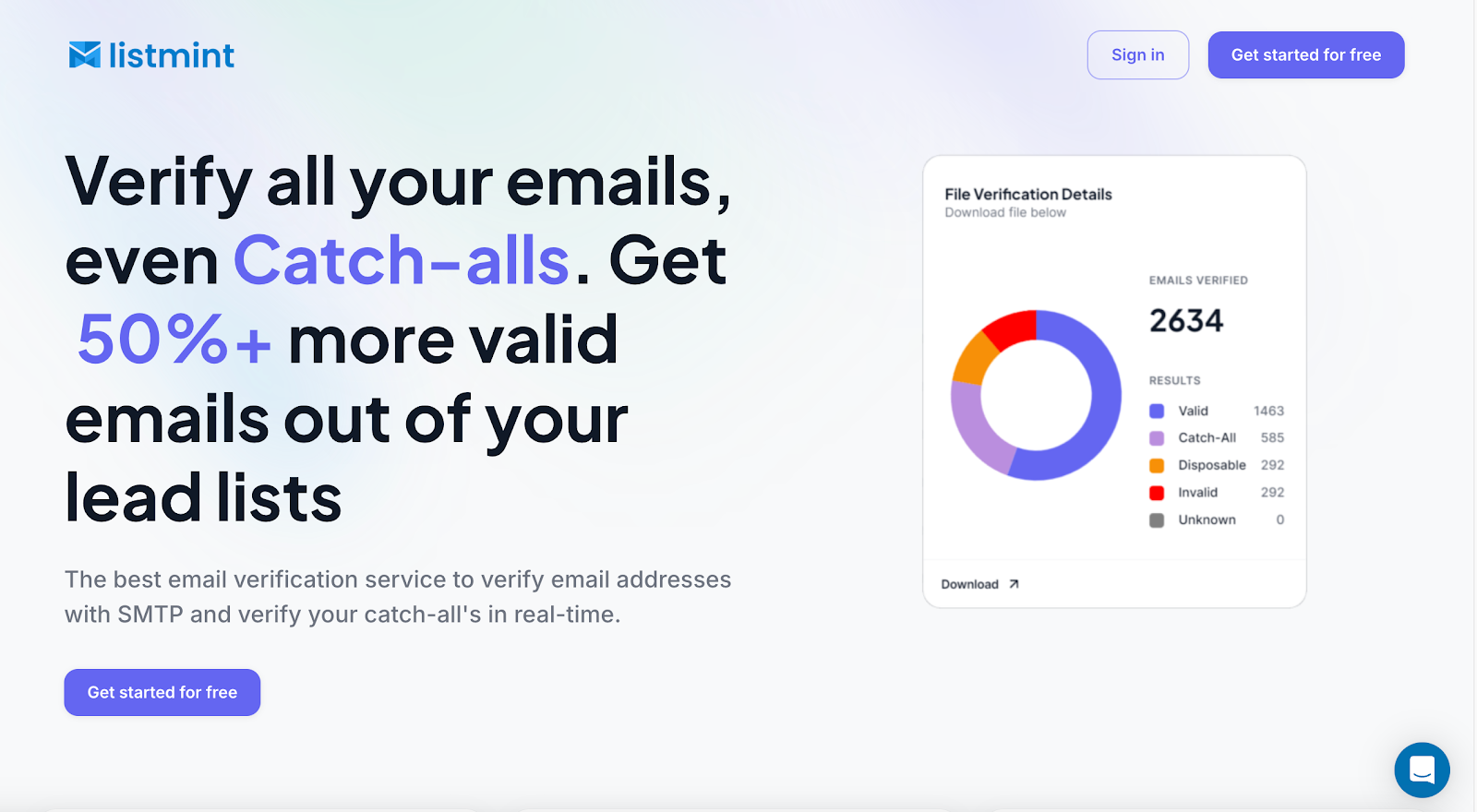
Listmint combines standard SMTP and dedicated catch-all verification to help teams evaluate catch-all addresses further.
It verifies both standard and catch-all emails in one platform, so you do not have to discard potentially useful contacts simply because another verification check cannot resolve them.
For catch-all verification, Listmint returns specific results: catch_all_valid and catch_all_invalid.
A verified catch-all can be handled based on its verification result, rather than automatically treated as risky or placed into a separate test segment.
Listmint supports several ways to run these checks:
Listmint has verified 1B+ emails, and its site reports that other verifiers may return around 55% of a list as valid compared with 84% with Listmint.
The added catch-all verification can recover contacts that might otherwise remain unresolved, with Listmint stating that users can get 50%+ more valid emails from their lead lists.
Listmint does not configure or manage Microsoft 365 catch-all mailboxes. Its role is on the verification side: helping you determine which email addresses associated with catch-all domains are actually valid.
Want to know which catch-all addresses are actually valid? Verify them with Listmint for free.
Yes, when your accepted domain is configured as Authoritative, Exchange Online rejects messages sent to recipients it does not recognize. A catch-all setup requires mail-routing configuration that changes how those unmatched messages are handled.
No. Changing an accepted domain to Internal Relay does not create catch-all behavior on its own. You still need the appropriate mail-routing configuration to determine what happens to messages sent to unknown recipients. Review existing connectors and routing before changing the domain type.
Yes, if the misspelled address is not already recognized and your catch-all configuration is set to route unknown recipients to the designated mailbox. For example, a message sent to jon@company.com instead of john@company.com could reach the catch-all destination.
No. A dynamic distribution group is not the same as a catch-all mailbox. It uses recipient filters to determine which members receive messages. You may also see the older term dynamic distribution list, but neither is designed to collect messages sent to unknown addresses.
A catch-all serves a different purpose. It uses Exchange Online mail routing to handle messages addressed to recipients that Microsoft 365 does not recognize.