A customer might type the wrong email address for your company, or someone might send a message to an address your team never created. Without the right setup, that message may never reach the person who needs to see it.
A Gmail catch-all email setup can help businesses using Google Workspace route messages sent to unrecognized addresses into a chosen inbox. It gives your company a way to catch mail that would otherwise be missed.
In this guide, you’ll learn what Gmail catch-all means, how to configure it in Google Workspace, and why catch-all behavior can make email verification more difficult.
A catch-all email address receives messages addressed to email addresses that aren't recognized on your company's domain. In other words, the sender can enter a non-existent address, but the message can still be directed to a designated destination.
For example, if john@company.com exists, an email sent there goes to John's mailbox. If sale@company.com doesn't exist, that message can go to the catch-all destination instead.
That doesn't mean every company email ends up in the same inbox. When catch-all routing is set to apply only to unrecognized addresses, existing users continue receiving messages sent to their own email addresses as usual.
Not with the Google Workspace catch-all setup covered here. A regular Gmail account, such as name@gmail.com, doesn't give you the domain-level admin controls used to configure this type of routing.
The setup in this guide applies to Google Workspace, where a business uses its own domain for addresses such as name@company.com. An administrator can control how Gmail handles mail for addresses under that domain.
So if you want a catch-all for your company domain, you'll need Google Workspace and the appropriate administrator access. It isn't a setting an individual Gmail user can turn on from a personal inbox.
You’ll need Google Workspace administrator access with the Gmail Settings administrator privilege to set this up. Before opening the Admin console, decide where you want incoming messages sent to unrecognized addresses to go.
First, choose the email address you want to use as your catch-all mailbox.
The catch-all account can be an existing user account, a new account created in Google Workspace, or a Google Group. For example, you could direct the mail to a specific inbox your business already monitors.
You don't need to create a new user just to have a catch-all inbox if you already have a suitable destination.
Sign in to your Google Admin console and navigate to:
Apps → Google Workspace → Gmail → Routing
On the Routing tab, scroll down to the Routing section.
Click Configure if you don't have a rule yet, or Add Another Rule if one already exists.
Give the rule a descriptive name. Under the option for when the action is applied, select Inbound messages.
For the action, choose Modify message. This tells Gmail how to change the email routing for messages that match the rule.
Check Change envelope recipient, then select Replace recipient.
Enter the recipient address you chose in Step 1. Gmail will use this as the new destination for messages that match the catch-all rule.
Scroll down and click Show more options.
Under Select all account types this action applies to, select All inactive and unrecognized accounts. Google also instructs administrators to make sure Archive accounts with assigned delegate is selected.
Leave Active user account and Group account unchecked. This keeps the rule from applying to active users and groups.
Click Save when you're finished. Your new routing setting may not become active right away, so wait a bit before testing it.
Once the rule is active, test it by sending an email to an address at your domain that you know doesn't exist. Check your chosen destination to confirm that the message arrives.
Do one final double-check before you're done: make sure the test address really is unrecognized and the message reached the intended destination.
Once the rule is active, Gmail handles incoming mail based on whether the address is recognized in your Google Workspace setup.
Recognized users continue receiving their email messages normally. The catch-all rule only steps in for unrecognized recipients when you've configured it that way, so regular company email can continue going to the intended mailboxes.
A catch-all address and an email alias can both direct mail somewhere useful, but they handle different situations.
An alias is an alternate address you intentionally create for an existing user. For example, hello@company.com could be set up as an alias that delivers mail to a specific person's inbox.
A catch-all comes into play when the address isn't recognized. If someone types helo@company.com by mistake, catch-all routing can send that message to your chosen destination even though helo@company.com was never created.
If you already know the correct addresses your business needs, such as sales@, billing@, or hello@, setting them up intentionally gives you more control.
These role-based accounts can remain consistent during employee departures or role changes, while access can be reassigned to the appropriate team members.
Catch-all routing is useful for mail sent to addresses you didn't create or expect.
Yes. A Google Workspace organization can manage multiple domains, but it's important to know how each additional domain is set up before configuring catch-all routing.
Google treats secondary domains and user alias domains differently. A secondary domain can have its own users, email addresses, and mailboxes. A user alias domain gives existing users alternate email addresses at another domain.
That difference can affect how you plan your Gmail routing. Before applying a catch-all rule, check whether each additional domain is configured as a secondary domain or user alias domain and which addresses belong to it.
Google Workspace does not provide separate Gmail service settings for every domain, so review the scope and filters of each routing rule.
If your catch-all isn't behaving as expected, the problem is often somewhere in the routing settings, destination address, or domain configuration.
Here are a few places to look before changing the entire setup.
First, check that the catch-all rule is still configured and points to an active destination. Make sure the address entered under Replace recipient is correct.
If the message was delivered but you can't find it in the inbox, check the spam folder as well. For a newly created destination account, also confirm that the account is active before testing again.
Go back to the rule and review the account types it applies to.
For the catch-all setup described above, all inactive and unrecognized accounts should be selected. Google also instructs administrators to keep Archive accounts with assigned delegate selected.
Active user account and Group account should remain unchecked. If either is selected, the routing rule can apply beyond the inactive and unrecognized accounts you intended to catch.
Check the address entered under Change envelope recipient → Replace recipient. That should be the catch-all destination you actually want to use.
It's also worth reviewing other Gmail routing rules that could affect the same mail. Default routing and Routing are separate settings in Google Workspace, so another configuration may be influencing where the message goes.
A newly saved routing rule may not take effect immediately. Google advises allowing up to 24 hours for routing changes, even though they often become active sooner.
If you just created or changed the rule, give it some time before rebuilding the setup. Test again later with an address you know doesn't exist.
If your organization uses more than one domain, check how the affected domain is configured in Google Workspace.
Secondary domains and user alias domains don't work the same way, so don't assume that mail for every domain will behave identically.
Review the domain configuration first, then check which routing settings apply to the messages you're testing.
Catch-all routing creates a challenge when you try to verify an email address. On catch-all domains, the mail server may accept a message even when the specific address isn't a recognized individual recipient.
From the sender's side, that makes the SMTP response harder to interpret. A successful response can show that the domain accepts mail for the address, but it doesn't necessarily confirm that the individual mailbox exists or belongs to a real person.
That's why standard checks may identify catch-all emails but still return a catch-all status that needs further verification.
Sending to those addresses without knowing more can contribute to high bounce rates and affect email deliverability if the individual mailboxes aren't valid.
Verification can assess mailbox status, but it cannot predict whether recipients will interact with your messages. Unengaged addresses can still produce low engagement even when they are technically valid.
If you're working with these addresses, our guide on how to verify catch-all emails explains the verification process in more detail.
A Gmail catch-all can leave you with an important question: does the individual mailbox actually exist?
Listmint takes verification beyond the initial SMTP response. It combines standard SMTP verification with dedicated catch-all verification, so catch-all emails don't have to stay stuck in a generic, risky, or uncertain result.
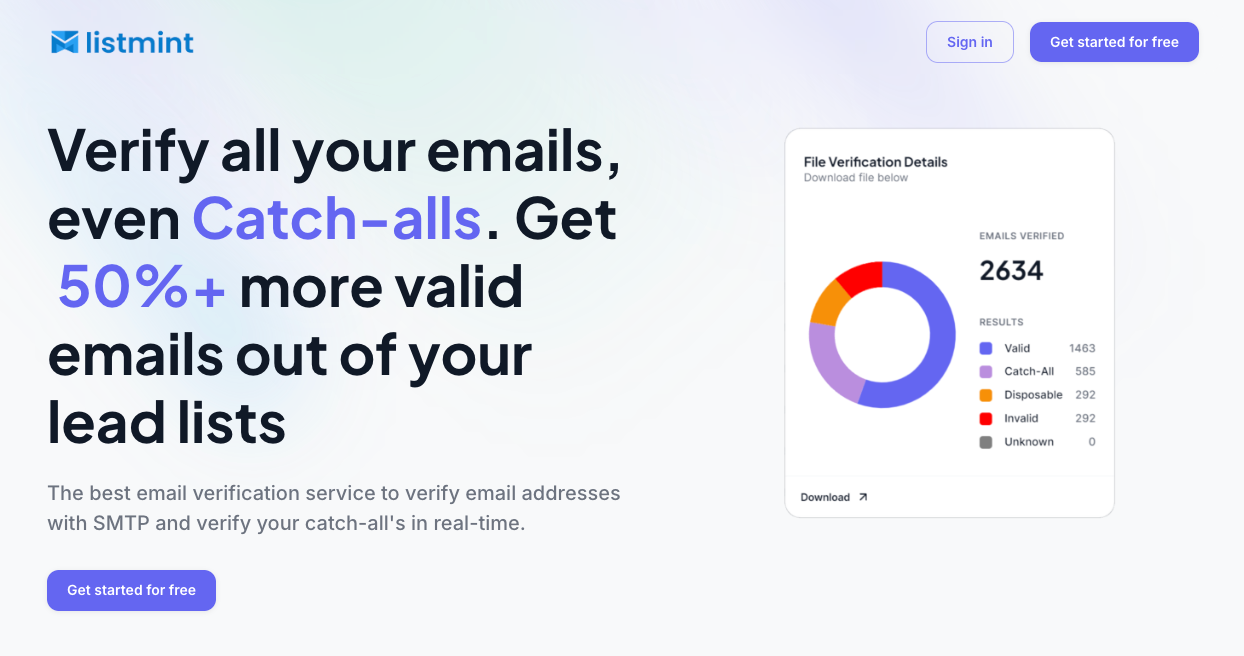
Listmint goes beyond detecting that an address belongs to a catch-all domain. It runs an additional verification process and returns the individual address as catch_all_valid or catch_all_invalid.
That distinction changes what you can do with the result. A catch_all_valid address can be treated as a verified contact, while a catch_all_invalid address can be removed before you send.
For Gmail catch-all addresses, this helps resolve the uncertainty created when the domain accepts mail but a standard SMTP response alone can't confirm the individual recipient.
Listmint verifies catch-all addresses in real time without sending an email to the address being checked.
You can upload existing lists for bulk verification, check new contacts as they enter your workflow, or use the real-time API to add standard and catch-all verification directly to your product or existing process.
That means your team can verify catch-all emails without waiting 24 to 48 hours for results or sending test messages that could affect your sender reputation.
Listmint has verified more than 1 billion emails, with 99%+ SMTP verification accuracy and 99%+ catch-all verification accuracy.
Generic verifiers return about 55% valid results, while Listmint customers can see up to 84% valid results after catch-all verification.
That can give you 50%+ more valid emails from lead data you already have, without automatically discarding addresses simply because they're catch-all.
Verify your catch-all emails with Listmint. Get started for free.
To select all emails in Gmail, click the checkbox at the top of your inbox, then click the option to select all conversations in that view or matching your search. You can then apply a bulk action to the selected messages.
A catch-all email setup receives messages sent to unrecognized addresses on a domain. For example, if someone emails a misspelled address that was never created, catch-all routing can direct the message to a designated inbox.
If you use Google Workspace, an administrator can create a routing rule for unrecognized addresses and send those messages to a chosen mailbox. The destination can be an existing account or an appropriate Google Group configured to receive the routed mail.
There is no reliable single “most hacked” email provider. Email account compromises can involve phishing, stolen passwords, malware, or security incidents outside the provider itself, so a universal provider ranking would be misleading.
No. You shouldn't automatically remove catch-all emails from your list because some may belong to valid recipients. Verify them first so you can make a decision based on the individual address. Disposable emails and potential spam traps are separate list-quality issues and shouldn't be treated as the same thing as catch-all addresses.