You spend time writing and preparing your emails, only to find out that some never reach your subscribers' inboxes.
Even legitimate emails can end up in spam, which means your customers may miss important updates, offers, or messages from your business.
The frustrating part is that there isn't always one obvious reason. Mailbox providers consider several factors, including email authentication, sending reputation, recipient complaints, list quality, and the content of your messages.
If you're trying to figure out how to avoid email going to spam, the best place to start is with the factors you can control.
In this guide, we'll walk through practical steps to help keep your emails out of spam folders and improve your chances of reaching the right people.
When you send an email, mailbox providers use spam filters to decide if it belongs in the recipient's inbox. These systems check incoming emails for suspicious activity to protect users from scams and spam emails.
But legitimate business messages can get caught, too. If your emails keep going to spam, several factors could explain why.
Here are the common causes:
Knowing these causes can help you identify what needs attention before your next campaign.
Keeping your emails out of spam starts with a few things you can control, from how your messages are sent to who receives them.
Here are ten practical steps to help your business improve its chances of reaching the inbox:
Start by checking that your sending domain is properly authenticated.
If your business uses its own domain name for transactional emails or marketing messages, receiving servers need a way to confirm that those emails are really coming from you.
Three email authentication protocols help with this:
According to Google's sender guidelines, all senders to personal Gmail accounts need SPF or DKIM, while bulk senders need SPF, DKIM, and DMARC. Yahoo has similar requirements.
For proper authentication, check that your SPF and DMARC records are published in DNS and that DKIM signing is enabled through your email provider. Your sending setup should also use TLS encryption, and the sending server's IP address should have valid forward and reverse DNS records.
These checks help prevent email spoofing and reduce the chance of your messages being rejected or marked as spam.
One of the simplest ways to keep your emails out of spam is to send them to people who actually want to hear from your business.
For email marketing, start with a permission-based list. Give people a clear choice to subscribe through your website, signup forms, or checkout pages.
Don't automatically add customers to your mailing list just because they made a purchase or created an account.
You can also use double opt-in, which asks subscribers to confirm their email address before joining your list. It helps confirm that the person signing up has access to that mailbox.
Avoid buying or scraping email lists. These lists may contain spam traps or contacts who never agreed to receive your marketing emails.
Even if you don't intend to send spam, people may consider your messages unwanted emails if they never signed up.
Be upfront about what subscribers will receive. For example, someone who signs up for product updates shouldn't suddenly receive daily promotional offers they weren't expecting.
Before sending your next campaign, make sure the email addresses on your list are still valid. People change jobs, abandon old accounts, or enter incorrect addresses when signing up.
Sending to invalid email addresses can lead to unnecessary bounces, which may affect your email deliverability over time.
You can verify addresses at three points in your contact collection process:
An email verification tool like Listmint can help you identify invalid, disposable, and uncertain addresses without sending actual messages.
Pay attention to catch-all domains, too. Their mail servers may accept messages without confirming whether an individual mailbox exists, so standard SMTP checks may not be enough to verify the address.
Your email service provider may report delivery problems after sending, but verifying addresses beforehand helps you catch potential issues before they affect your campaign.
Once you have your verification results, the next step is to make sure invalid contacts don't stay on your active mailing list.
Remove addresses confirmed as invalid and update their status in your CRM or email program.
If an address returns a hard bounce because the mailbox doesn't exist, suppress it so your system won't attempt to send emails to it again.
Keep in mind that not every delivery failure means an address is invalid.
Soft bounces are temporary failures caused by issues such as a full mailbox or a receiving server that's temporarily unavailable. These addresses may work again, so review the error before deciding what to do with them.
It's also worth keeping a suppression list that records which addresses should no longer receive messages. That way, previously removed contacts won't accidentally return to your active list during future imports.
Keeping these records updated helps prevent repeated delivery failures and reduces avoidable email deliverability issues.
A spam complaint happens when someone clicks "Report spam" on your email. When recipients mark your messages this way, mailbox providers take it as a sign that people may not want to receive them.
Too many spam complaints can make future messages more likely to land in spam.
According to Google's sender guidelines, you should keep your user-reported spam rate below 0.1% and avoid reaching 0.3% or higher. Rates above 0.1% can already affect inbox delivery, especially for bulk senders.
To reduce complaints, pay attention to what your subscribers actually want to receive.
Compare complaints by campaign, audience, and signup source. Pause segments generating repeated complaints while you review how those contacts joined your list.
Watch how engaged subscribers respond to your emails compared with unengaged subscribers who rarely interact with them.
If complaints start increasing, review which campaigns or audiences are generating negative feedback before sending more messages.
Not everyone will want to keep receiving emails from your business, and that's okay. Giving people a simple way to opt out helps prevent them from reporting your messages as spam.
Add a visible unsubscribe link to your promotional emails, usually near the bottom. Make sure it works and doesn't require people to log in or complete several steps just to leave your mailing list.
Google requires bulk senders to support one-click unsubscribe for marketing and subscribed messages sent to personal Gmail accounts.
A domain becomes a bulk sender after sending around 5,000 or more messages to personal Gmail accounts within 24 hours. Yahoo also requires bulk senders to provide an easy unsubscribe process.
Google also recommends processing unsubscribe requests within 48 hours.
Businesses must follow applicable anti-spam laws, too. Under the US CAN-SPAM Act, businesses must provide a working opt-out method for commercial email and honor requests within 10 business days.
Once someone unsubscribes, update your mailing list and suppress that contact from future promotional campaigns.
A working unsubscribe process gives people control over the emails they receive and helps your business avoid contacting people who no longer want them.
A sudden jump in email volume can make mailbox providers cautious about your sending activity, especially if you're using a new domain or haven't sent emails in a long time.
For example, if your business normally sends 300 emails a week, suddenly sending 20,000 in one day may lead to delivery delays or temporary restrictions.
When starting bulk sending, begin with a smaller group of your most engaged subscribers who regularly interact with your emails. Increase the number of recipients gradually, checking for delivery errors before sending larger batches.
Once you've established a regular schedule, try to maintain consistent sending patterns. If your business usually sends a weekly newsletter, stick to that schedule instead of sending large batches without warning.
Pay attention to delivery errors as you increase your sending activity. If messages begin getting delayed or rejected, reduce your sending volume and investigate the cause before trying a larger batch.
A gradual, predictable approach gives mailbox providers a more stable sending history to evaluate.
Before launching a campaign, send a few test emails to accounts you control on Gmail, Outlook, and Yahoo. This gives you a chance to spot problems before your message reaches your entire list.
Open the emails using different email clients and check where they land. If a message ends up in the junk folder, check its authentication results and any available spam warnings for possible clues.
In Gmail, you can use "Show original" to check the authentication status of SPF, DKIM, and DMARC. You should also review your test accounts' account settings to rule out personal filters or rules that may affect delivery.
Next, open the email as a recipient would. Click the links, check that images load correctly, and look for broken layouts or suspicious formatting. Make sure the unsubscribe option works, too.
You can also use a spam testing tool to check your spam score and identify possible issues before sending.
Keep in mind that test results only give you an early indication of inbox placement. A message reaching your test inbox doesn't guarantee it will reach every subscriber's inbox.
The way you present your emails can affect how mailbox providers and recipients respond to them. Modern spam filters look beyond individual words and check for signs of misleading or suspicious messages.
Use a sender name your subscribers will recognize, such as your business name or a familiar contact. People should be able to tell who's emailing them without having to open the message.
Your subject line should also match what's inside the email. Avoid misleading subject lines that promise discounts, updates, or offers your message doesn't actually provide.
Be careful with deceptive subject lines, such as adding "Re:" to make a promotional email look like part of an existing conversation. Fake urgency, impersonation, and exaggerated claims can also trigger spam filters.
Check your links, too. The text people click should match the page they'll visit, and your message should deliver what the subject promises.
Trying to avoid spam trigger words from a fixed list isn't enough to avoid spam filters. Mailbox providers look at the overall message, so focus on writing honest, relevant emails that your subscribers can recognize and trust.
After each campaign, review acceptance, rejection, and delay reports. These can reveal delivery problems, but they do not confirm spam placement.
To investigate spam folder issues, review hard-bounce rates, spam complaints, authentication failures, and controlled test results together. If these numbers suddenly increase, check which campaign or sending domain was affected.
Google Postmaster Tools can also help you understand how Gmail evaluates your sending activity. It provides available data on spam reports, authentication, and domain or IP reputation, although reporting depends on your sending volume.
Your sender reputation also deserves attention. Different email providers and inbox providers may evaluate your domain and IP reputation differently, so a problem with Gmail doesn't always mean Outlook users are affected.
Don't rely on open rates alone to judge email engagement. Review click-through rates to see how recipients interact with your messages, but remember that these metrics can't confirm whether your emails reached the inbox.
Compare the results of recent campaigns to spot unusual changes. If complaints rise, authentication begins failing, or messages get rejected more often, investigate the affected campaign before your next send.
If your emails are already landing in spam, first find out where the problem is happening. Check if messages are reaching the main inbox in Gmail, Outlook, or Yahoo, or if they're being filtered into junk mail.
Different inbox service providers may handle your messages differently, so identifying the affected provider can help narrow down the cause.
Here's what to check based on the problem you're experiencing:
In an affected email account, check message headers for the authentication methods mentioned earlier: SPF, DKIM, and DMARC. Review sending logs and error reports, too.
These can reveal authentication or delivery problems, although they may not explain exactly why a mailbox provider placed the message in spam.
Once you've identified a likely cause, correct the issue and run a few controlled tests before returning to your regular sending volume.
Good email authentication and well-written content can help keep your emails out of spam, but they won't fix an inaccurate contact list. Sending to invalid or nonexistent mailboxes can still lead to unnecessary bounces.
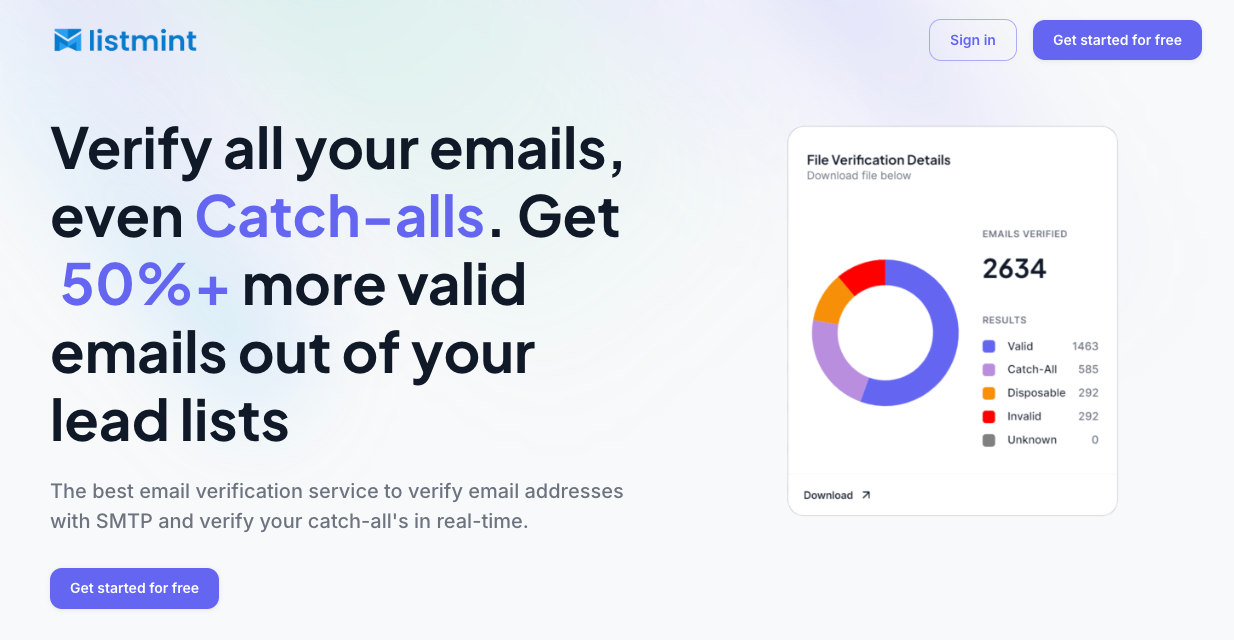
Listmint helps your business catch those problems before sending. It combines standard SMTP verification with dedicated catch-all verification, giving you a way to check both regular and catch-all addresses in one platform.
What makes Listmint especially useful is its ability to verify catch-all emails in real time without sending actual emails to those addresses. You get specific results, including catch_all_valid and catch_all_invalid, so your team can identify usable contacts without automatically discarding catch-all leads.
Listmint also offers:
With over 1 billion emails verified, Listmint helps businesses and agencies reduce avoidable bounces and make better use of the lead lists they've already built.
Your business can identify more valid contacts, reduce the risk of list-quality-related sending problems, and make better use of verified catch-all leads without automatically excluding them from outreach.
Reduce avoidable bounces and keep your email list accurate with Listmint. Get started for free.
To prevent email rejection, check that SPF, DKIM, and DMARC are configured correctly. Review the rejection message from the receiving server, which may identify authentication failures, sending restrictions, or reputation problems. Fix the reported issue before sending again.
Yes. Acceptance means the receiving server took the message. It does not confirm that the email reached the inbox rather than spam.
An email can go to spam when mailbox providers detect signs of unwanted or suspicious activity. Common triggers include misleading subject lines, failed authentication, frequent spam complaints, and unusual sending behavior.
No single word automatically sends an email to spam, since filtering systems evaluate multiple signals.
To improve your chances of reaching the inbox, authenticate your sending domain, use accurate contact lists, and send relevant emails to people who want them. Keep sending volumes consistent and monitor delivery results.
These practices can improve inbox placement, although no method guarantees that every email will reach the inbox.
No. Low subscriber engagement doesn't necessarily mean your emails are landing in spam. A drop in user engagement, such as fewer clicks or replies, may simply mean recipients are less interested in your content.
Check delivery errors, authentication results, and available spam reports before assuming your emails have an inbox placement problem.